Users
Before you can share availability with colleagues or schedule on their behalf, you need to add them to your Cronofy Organizational Unit (OU). This is how Cronofy coordinates real-time calendar availability across your team - so that when you create a scheduling request with multiple participants, everyone's calendars are taken into account automatically.
Users can be added manually by invitation or synced automatically from your organization's directory. Both methods are covered below.

How do I login to Cronofy?
To login you can choose again between Google or Microsoft Office 365 (via Graph API) based on your preferred calendar provider. You must sign in with SSO (Single Sign-On) by clicking the "Continue with " option.
Ensure you choose the correct data center associated from the dropdown, with your account when you registered.
Work email, remember is for only the developer account and will not work for most users.

How do I update my scheduling preferences?
Availability: This is the time you will be available for interviews and other events planned with Cronofy. Options include :
- Time Buffers between appointments.
- Times you are available during the day. (Default is 9am-5pm / Mon-Fri)
- Minimum notice, how long beforehand you want people to be able to book with you.
Event details: Here you set options for where the events are taking place, virtually and physically:
- Set in which calendar the appointments should reside.
- Setup your prefered Conferencing service.
- Location of the meeting and more.
Public Link: This a static link allows anyone to book an event with you according to your Preferences. This is perfect if you need to reuse it for multiple bookings. Anyone visiting the link will be required to enter their details before their meeting is scheduled, as shown below.
How do I add members to my organization in Cronofy?
There are three ways to add users into an organization:
- Manually, through an email invite in the members section.
- Domain sign up, which can enable anyone in your company with the same email domain to sign up automatically.
- Active Sync, which can partially or fully sync your directory, creating scheduler account automatically for users.
How do I manually add members in my OU?
This is the standard way to invite users to your OU (Organisational Unit). To invite users manually head to:
OU settings -> Members -> Users
Scroll all the way down and select Invite Users. This will open the the invite tab (see screenshot) Now you can enter the emails (up to 20 at a time) of the users you want to invite to your OU.
Bellow that you will find the roles selector which determines the role if the users you invite.
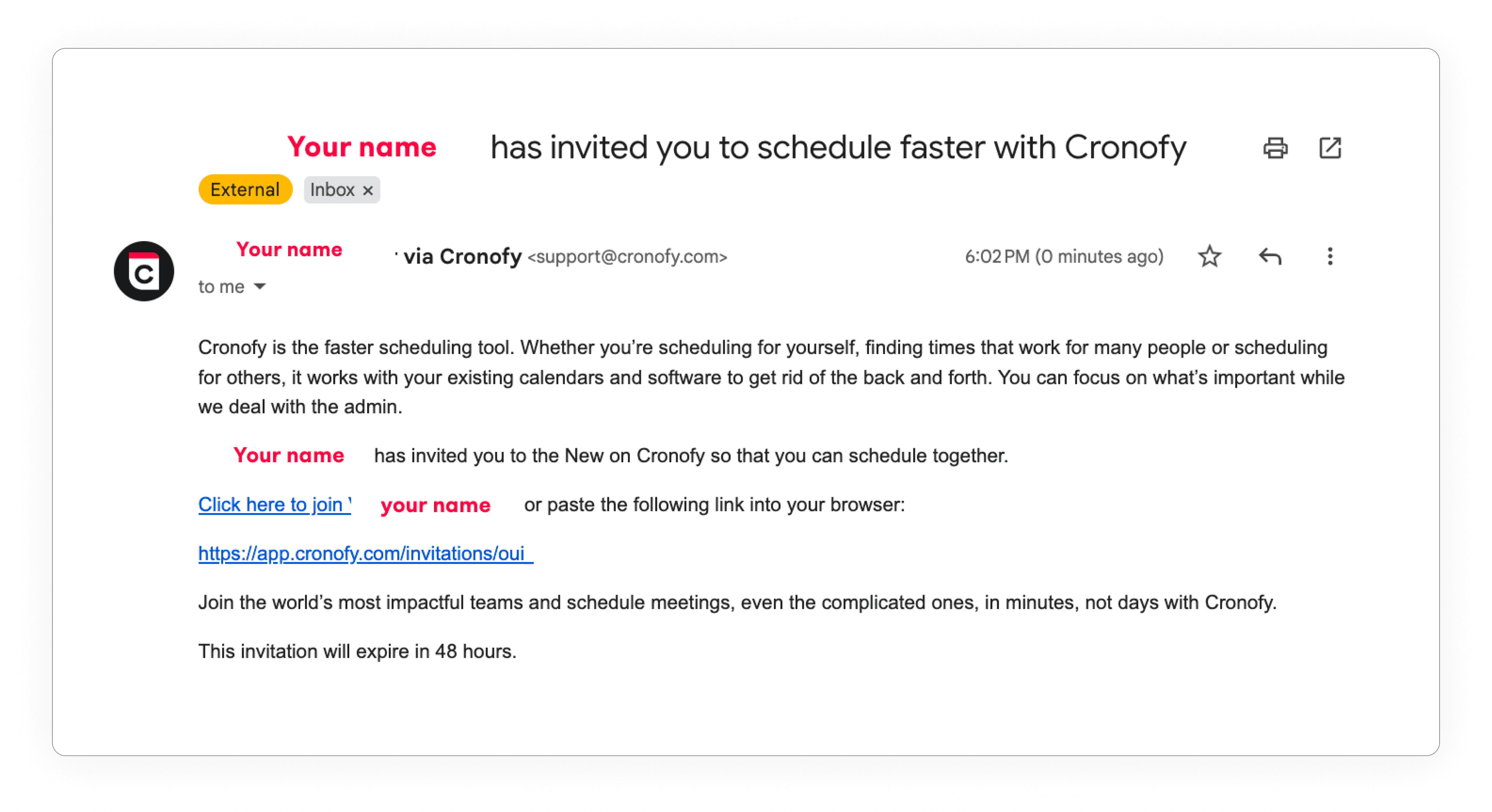
The users will then receive an email prompting them to accept your invite, which is valid for 48hrs.

How do I automatically add members in my OU?
You can skip sending invites to your team and allow any coworkers who share your email domain to join your OU by enabling Domain Sign Up.
To enable Domain sign up, you need to click on your OU on the left hand panel. Then you select scheduling>settings.
Simply click on the tickbox and the option is enabled.
Only Owners can do this.

Our Enterprise Connect function allows you to connect a service account via MS365 or Google Workspace, quick and easy without extra cost. From there you have the option of full or partial directory syncs.
The service account will auto-generate Cronofy accounts for your users without them having to accept email invitations or sign-up themselves.
How do I update preferences of another member?
Manage team members in the Members -> Users section on your organisational settings.
Owners can change the availability of a member by setting their working hours or interview time placeholders. In addition you can view your members buffer times and minimum notice.
{Your Org Name} Settings -> Members -> Users
Click on a user from the list to view and adjust their availability or update their role as needed.
Where do I manage users?
In the members section, in your OU.
OU settings -> Members
As a scheduler admin or owner in Cronofy you have the ability to change roles and set availability for your users. To do this, you need to navigate to the Members section in Cronofy.
- Role changes: Click the role dropdown and update the current role for the user you selected, then click save to confirm your choice.
- Availability preferences: You can set the users availability as you would in your own preferences, and/or set the Interview Times to block certain times for specific types of events.
- Changes to the user's time zone and the addition of extra calendars (for shared availability) can be managed here, provided that the calendars are already linked to the user's account.
Don't forget to click SAVE after undergoing a change.
Some setting cannot be edited yet from the members section, so you might want to do this in bulk or on behalf of interviewers so they don't need to go into Cronofy themselves. For this you need to reach out to our Support.
We can bulk update for everyone at once like: Buffers, minimum notice and limits
How do I remove a user?
To remove users from your organization in Cronofy, you need to have the owner role. If you are an owner you can click on any user from your member section and scroll all the way down.
Click on the Remove account from Organizational Unit button.
You’ll then be redirected to the user’s page, where you’ll see their involvement in selection rules and templates. If you choose to remove the user, we’ll also remove them from any selection rules and set the templates as “no host” if they’re the only host.

What do the user roles in Cronofy do?
Regular Roles
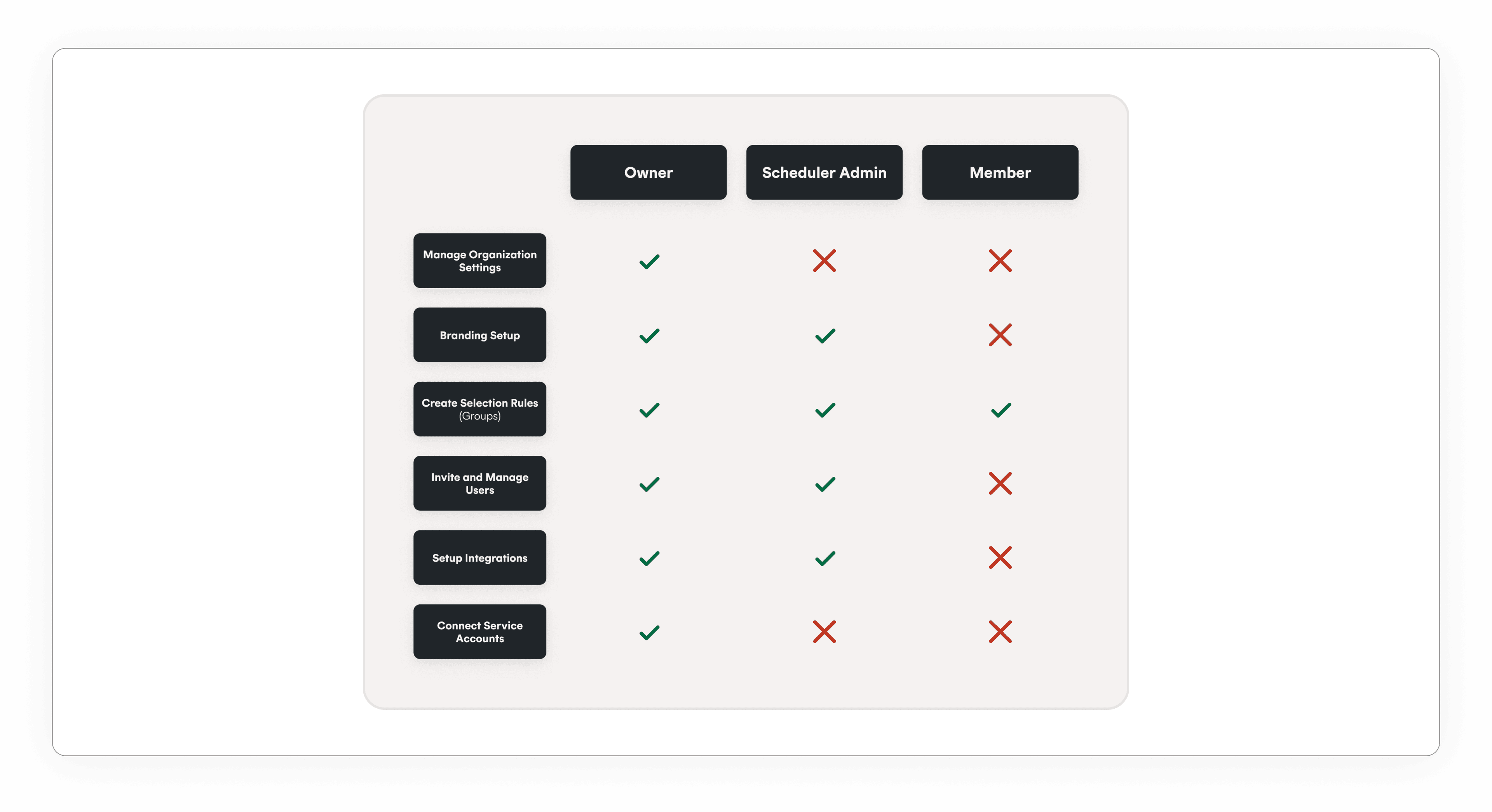
There are 3 main roles available to assign to users in Cronofy.
The standard role is 'member' which will allow someone access to only their own preferences and to schedule for themselves. (This is advised for interviewers or hiring managers)
Scheduler Admin (advised for Recruiters and Coordinators) Admins have the ability to schedule for others, add users and edit some aspects of the OU settings. Additionally they can create templates and selection rules.
Owner (advised for managers) is the highest role Cronofy provides and has full control over settings and members in the OU with exemption to billing which is discussed further down. Service accounts connections are also only achievable with this role.
Additional technical roles:
Some roles are meant to achieve specific things in Cronofy. These are not intended for regular Cronofy users, but for more technical or IT users and integrations. Here are brief scopes:
Developer has control over all the applications in your Organizational Unit, allowing custom integrations to be built and managed. Cannot create new applications.
Developer Admin has full control over developer access and all applications associated with the Organizational Unit, including the ability to create new ones.
IT Admin has control over integrations and Organizational Unit setup, can view members, and can manage service accounts. Cannot edit members, billing, or scheduling.
Integration Subscriber your Organizational Unit when an Enterprise Conferencing integration (such as Zoom, Microsoft Teams, or Google Meet) provisions its directory. It grants no control over settings.
Contact Us
If you have any further questions or suggestions, please contact us at support@cronofy.com.
What is a Public Link?
A Public link is a generated link that allows anyone to book an event with you according to your preferences in Cronofy. Anyone visiting the link will be able to book a slot with you and can be required to enter their details before their meeting is scheduled.
You can add this link anywhere, as a hyperlink within a email signature for example, this is perfect if you need to reuse it for multiple bookings.
Where do I find and how do I set up my public link?
When you sign up with Cronofy, your account will auto generate a public link that is only shared with you.
This link can be found on your main page and can be edited in preferences.
Navigate you the public link tab and edit the required field.
Preferences > Public Link
You can edit:
- Primary Organization Unit: This will determine the branding of your Public Link. If you have multiple Organizational Units (OUs), please ensure you select the correct one.
- Data Capture: You can have users provide their phone number and email before completing a booking and you can specify whether these fields are required, optional, or hidden. Additionally, you can set up a Additional Information prompt if you need to collect more specific details.
Please note, the “Additional Information” prompt will be limited to 128 characters and your attendee’s response to 360 characters. That includes spaces.
You can also include your branding in you public link.

Can I have a custom public link?
You can create a custom public link by generating it from a template. Simply head to Scheduling -> Templates and when creating the template, make sure the public link option is ticked. It's important to know that a public link always requires a host to work.
After creating the template you can copy its public link from the templates overview, by clicking the templates icon.

Can I have meeting limits?
Yes, the Limits feature allows you to set a maximum number of events of a given type, that a user can be booked for on a weekly and/or daily basis. To apply a limit you need to set a tag and a user with that limit, when creating the scheduling request.
To request a limit you must reach out to our Support with the email or an email list of the users, the tag associated and the daily/weekly limit number. Below you find some of the scenarios you can use.
Some request examples:
- example-user@company.info with 1 daily/ 3 weekly for tag "Interview"
- find attached a list of users, for 1 daily/ 3 weekly for tag "Hiring managers"
- Group name in Cronofy for 1 daily/ 3 weekly for tag "Technicians"
- List of people, out of these "user1 and user2" need to have 2 more meetings, the rest for 1 daily/ 3 weekly for tag "Interview"
- Apply to OU name for all, 1 daily/ 3 weekly for tag "Interview"
If you use the Limits for Groups, as a list, remember that these aren’t managed. This means that if a user is removed or added to the list, their limit won’t change.
Any changes you want to limits individually or in a group need to be requested as well.
Your request usually is processed within the day so you can use this feature.
Let's take a look at how limits are applied and used.
When you create a single request or setup a public link, you can add the users and tag to apply the limit. Simple as that! You can add as many tags as you want so that the users all have their limits respected.
SoIf one user has the 2-per-day limit in the “Interview” tag, and the other user has the 3-day limit applied in the “Hiring manager” tag, you need to add both limits to the same request for them to kick in.
If the user has no limit or the tag is not applied, then the limit will not work.

How do I change my clock from 24hr to AM/PM format?
You nee to go to your account by clicking your name on the bottom right hand corner and then to Your Account. From here you need to change the language setting from English, to English US. This will display to time in am/pm format. Don’t forget to SAVE.
How do I change my password? (Only for devs and Exchange users)
How do I add more conferencing services?
To add more conferencing you can head to add conferencing page.
Your Account → Conferencing Services
or
Your Preferences → Event Details → Configure calendar services
Add calendars by following the authentication flow.
How do I add more calendars?
To add more conferencing you can head to Calendar Services page.
Your Account → Calendar Services
or
Your Preferences → Event Details → Add Conferencing
From here you can add Zoom, Teams and GotoMeeting. Google meet is automatically added by default for Google users.

