Invitees
Your invitees’ experience is important. We help you create a smooth event for everyone involved.

What will the invitee see when I send a scheduling link?
Your invitee will open a scheduling link or public link and get to the slot selection page. From there, they see the available times you have and select a time slot to book the event.
How do I send a separate invite to the invitee?
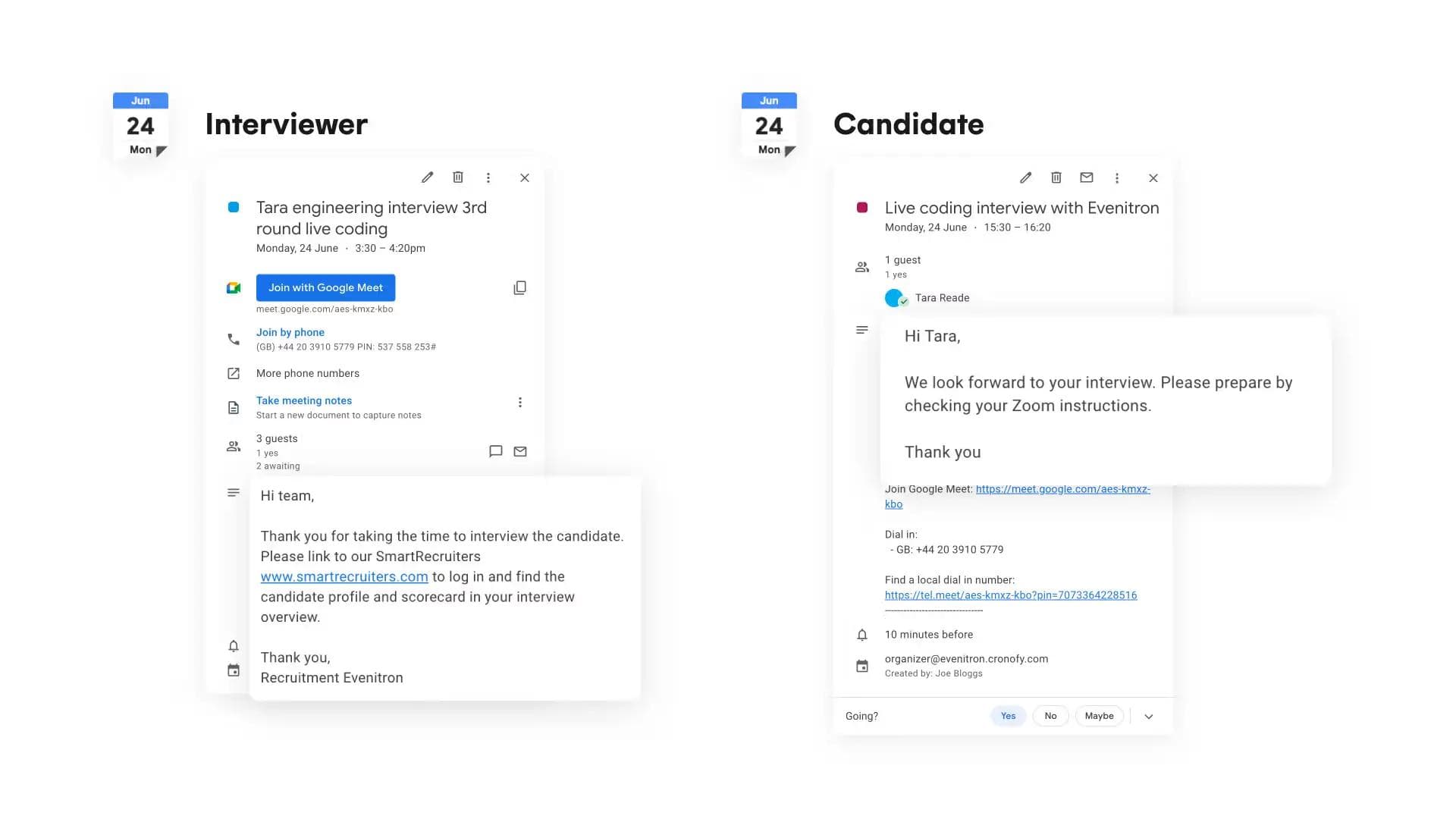
You can send a separate invite to your invitee by clicking the three-dotted symbol next to their name. Then, enable the slider and click “Done.”
Afterward, you’ll be able to switch between the event details to access different information about it.
Now you can:
- Share separate calendar event content with a candidate and interviewer(s). E.g. you can share preparation information to your candidate, and share the candidate information with your interviewer(s).
- Guarantee privacy as both parties will not see each others information such as name and contact details.
- Hide internal calendar updates from candidates.
Maintain control over event changes. Interviewers won't have the option to decline which will keep you in control in case they need to reschedule a time or a different interviewer.
Separate invites are now also supported if you create a request from a template.

Will invitees receive reminders?
No, invitees do not receive reminders for meetings ahead of time. However they will receive notifications about changes of the event.
What happens if invitees can do any of the times offered?
By clicking the I can’t do any of those times on the scheduling request the user may decline the request. The request then goes into the orange status, awaiting your action. From here you can choose if you want to offer more times or cancel the requests entirely.